Introduction
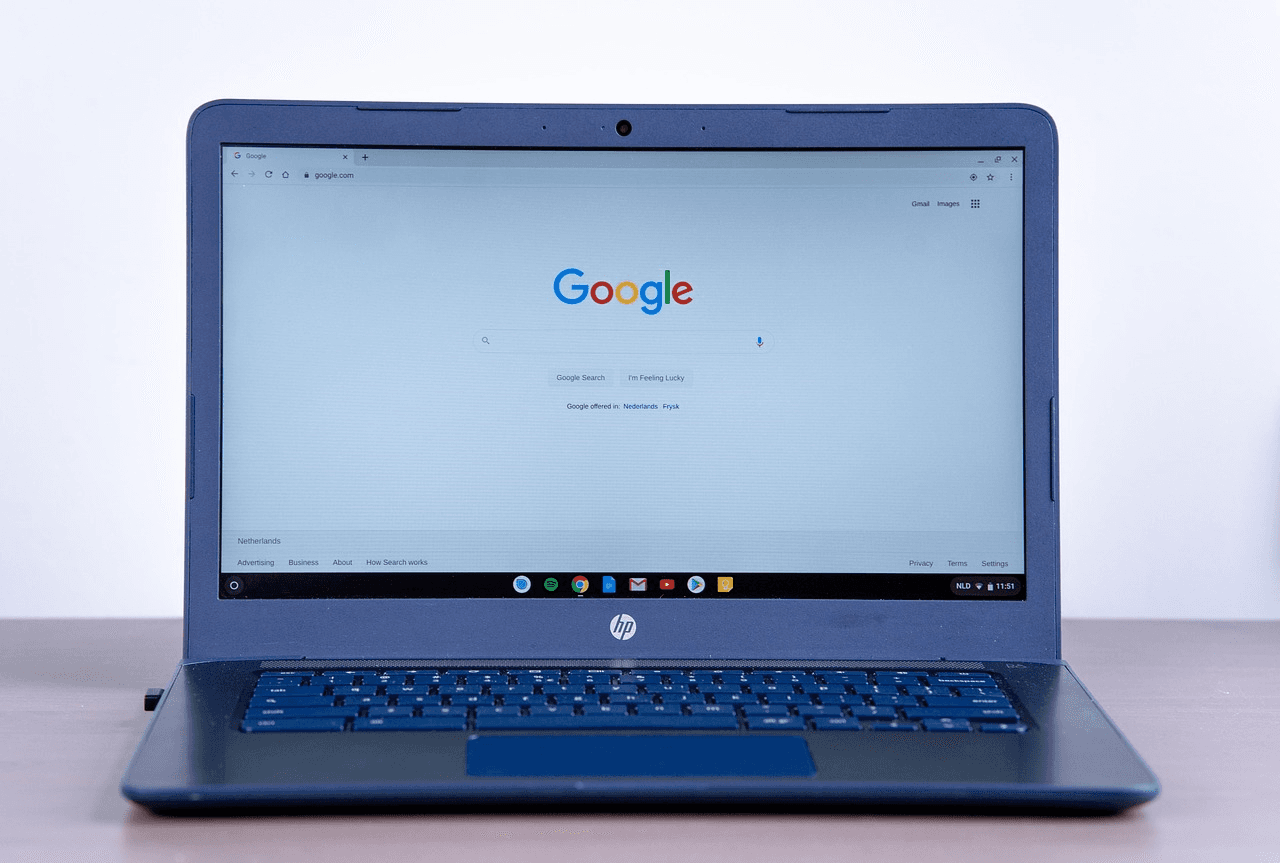
Over time, your Chromebook stores cached files that can slow performance, cause pages to load incorrectly, or create login issues. Clearing the cache is a simple way to refresh your device and restore smooth browsing.
What You'll Need
• Chromebook
• Internet browser (Chrome)
• Optional: Google account login info
Steps
Open Chrome and click the three dots in the upper-right corner.
Select “More tools,” then click “Clear browsing data.”
Choose a time range, such as “Last 4 weeks” or “All time,” for a full reset.
Check “Cached images and files” and any other data you want to remove.
Click “Clear data” and restart Chrome for changes to take effect.
Alternative Methods
• Use Chrome’s shortcut: Press Ctrl + Shift + Backspace
• Sign out of your Chromebook and perform a browser reset
• Powerwash (factory reset) the Chromebook for severe performance issues
What NOT to Do
• Do not clear passwords unless you have them saved elsewhere
• Do not reset your Chromebook without backing up important files
• Do not force shutdown during the clearing process
FAQs
Does clearing the cache delete my files?
No, clearing the cache only removes temporary files and will not delete documents, photos, or other personal files.
How often should I clear my Chromebook cache?
If you browse heavily, clearing the cache once a month can help maintain performance.
Why is my Chromebook still slow after clearing the cache?
Other issues such as low storage, too many extensions, or outdated software may be the cause. Consider removing unused apps or restarting your device.
This article is for informational purposes only. Always follow manufacturer instructions and use proper safety precautions. You assume all risk for any actions you take based on this guide.
Articles
Read our latest guides
Discover step-by-step methods for removing stains and cleaning every type of surface.

How to Clean Oil Paint Brushes
Learn how to safely and effectively clean oil paint brushes without damaging the bristles.
Read more
How to Clean a Cricut Mat
Learn how to safely clean a Cricut mat without damaging its adhesive, so it stays sticky and ready for crafting.
Read more
How to Clean Acrylic Paint Brushes
Learn how to remove acrylic paint from your brushes before it dries, helping them last longer and perform better.
Read more